Session history and export
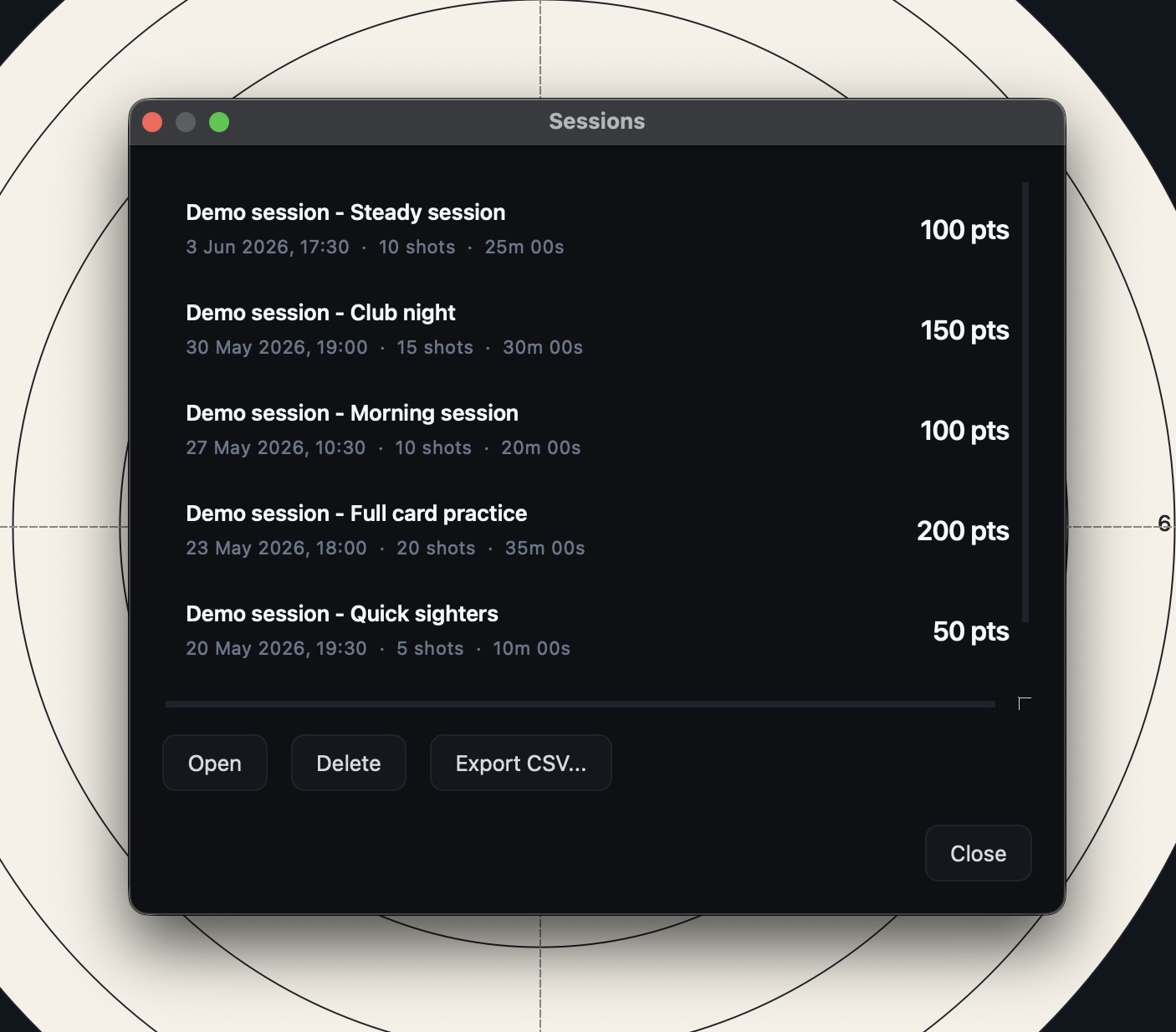
The session browser lets you view, replay, export, and manage previously recorded sessions.
Open any session to review your shots, export the data for further analysis, or remove sessions you no longer need.
Opening the session browser
Open the session browser from File > Sessions....
Session list
Each row represents a recorded session and shows:
- The session name
- The date and time the session started
- The number of shots recorded
- The session duration
- A category icon (target for practice, crosshair for sighter, star for match)
- A score badge, when scored shots are available
If a session was not given a name, ShotTrainer displays a generated name such as Session #3.
Filtering the list
The search field at the top of the dialog matches against session names as you type. The category dropdown next to it narrows the list to one of practice, sighter, or match. Both filters can be combined.
Clear the search field (or pick All categories) to see every session again.
Opening a session
To load a session for review:
- Select the session and click Open
- Or double-click the session in the list
The session's shots are loaded into the main window, allowing you to inspect the group, replay individual shots, and review trace data.
Exporting a session
To export a session:
- Select the session.
- Click Export CSV...
- Choose a destination folder.
ShotTrainer creates two CSV files.
Shot data
session_<id>_shots.csv
Contains one row per shot with the following fields:
- Shot index
- Timestamp
- X position (mm)
- Y position (mm)
- Audio level
- Detection confidence
- Score
Trace data
session_<id>_trace.csv
Contains the full recorded trace for the session, including:
- Timestamp
- X position (pixels)
- Y position (pixels)
- X position (mm)
- Y position (mm)
- Tracking confidence
- Frame ID
Numeric values are written using fixed decimal precision to ensure they display cleanly in spreadsheet applications.
Renaming a session
To change the name of a saved session:
- Select the session.
- Click Rename...
- Type the new name and press OK.
Leaving the field blank clears the name back to the default Session #N display. The change is saved immediately.
Changing the category
Each session is tagged as practice, sighter, or match. To change the tag on a saved session:
- Select the session.
- Click Category...
- Pick a different value and press OK.
The new tag is saved immediately and the badge on the row updates.
Deleting a session
To permanently remove a session:
- Select the session.
- Click Delete.
- Confirm the deletion.
Deleting a session removes the session record, all associated shots, and all trace data. This action cannot be undone.
No sessions yet
If no sessions have been recorded, the browser displays a message explaining how to get started.
Create your first session using the green Start session button on the main window or by pressing Ctrl+S (Cmd+S on macOS).