Printing a marker sheet
The marker sheet provides a simple, high-contrast aiming mark that ShotTrainer can track reliably.
By knowing the real-world diameter of the printed circle and measuring its size in the camera image, ShotTrainer can convert movement on screen into millimetres on the target.
Opening the marker sheet dialog
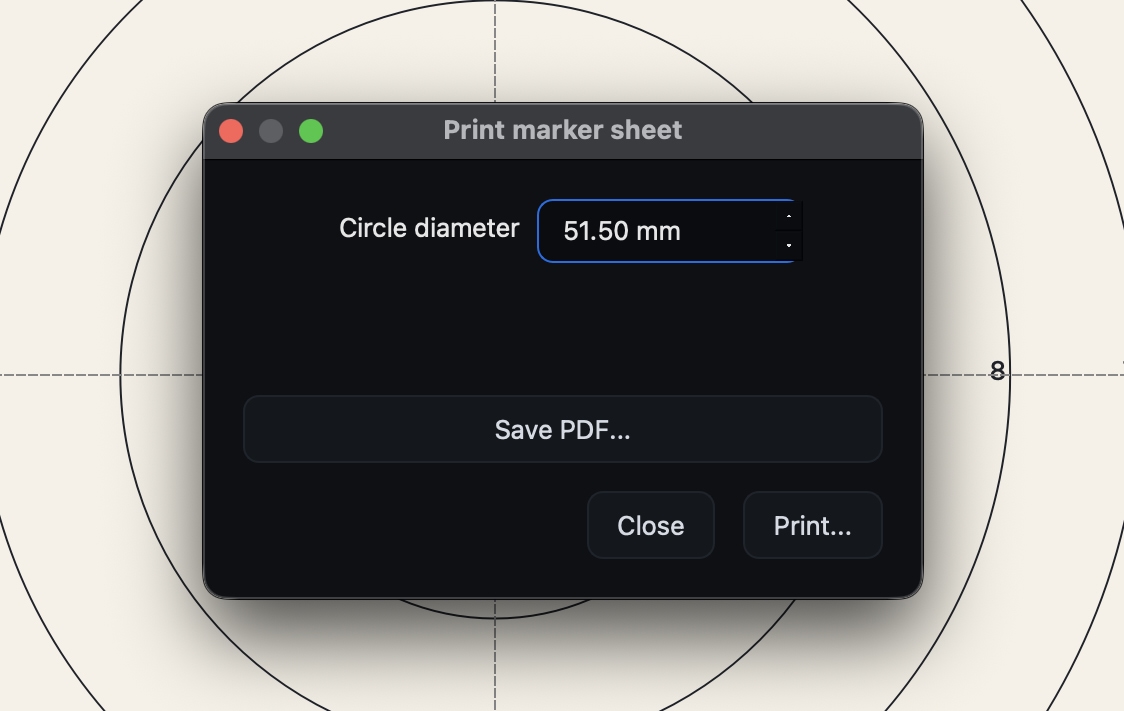
Open the marker sheet dialog from:
Tools > Print marker sheet...
Choosing a diameter
Enter the diameter of the circle you want to print, measured in millimetres.
Ideally, this should match the size of the aiming mark you will be shooting at. For example, if your target has a black aiming mark that is 45.5 mm in diameter, print a 45.5 mm marker sheet.
The default diameter is 60 mm, which works well for general-purpose testing and short-range setups.
Printing or saving as PDF
The dialog provides two output options.
Print
Click Print... to send the marker sheet directly to a connected printer using your operating system's print dialog.
Save PDF
Click Save PDF... to create a PDF version of the marker sheet that can be printed later or taken to a print shop.
Tracking circle diameter
The marker sheet diameter is linked directly to the tracking circle diameter setting found in:
Preferences > Target > Tracking circle
Both settings represent the same value.
Changing the diameter in either location automatically updates the other. If you print a 50 mm marker sheet, the tracking circle diameter should also be set to 50 mm.
Printing tips
Use matte paper
Matte paper generally produces more reliable tracking than glossy paper, which can create reflections and glare.
Print at actual size
Many printer drivers apply automatic scaling by default.
To ensure accurate measurements:
- Disable any "Fit to page" option
- Select 100% scale or Actual size where available
The printed circle should match the diameter shown in the dialog.
Check the printed size
After printing, measure the circle with a ruler or calipers.
If the printed diameter differs significantly from the requested size, adjust the printer settings and print again.
Tracking accuracy depends on the printed circle matching the configured diameter.
Mount the sheet flat
Try to keep the marker sheet as flat as possible.
Wrinkles, folds, or curled paper can slightly change the apparent size and shape of the circle, reducing measurement accuracy.
Pin or tape the sheet securely before use.